
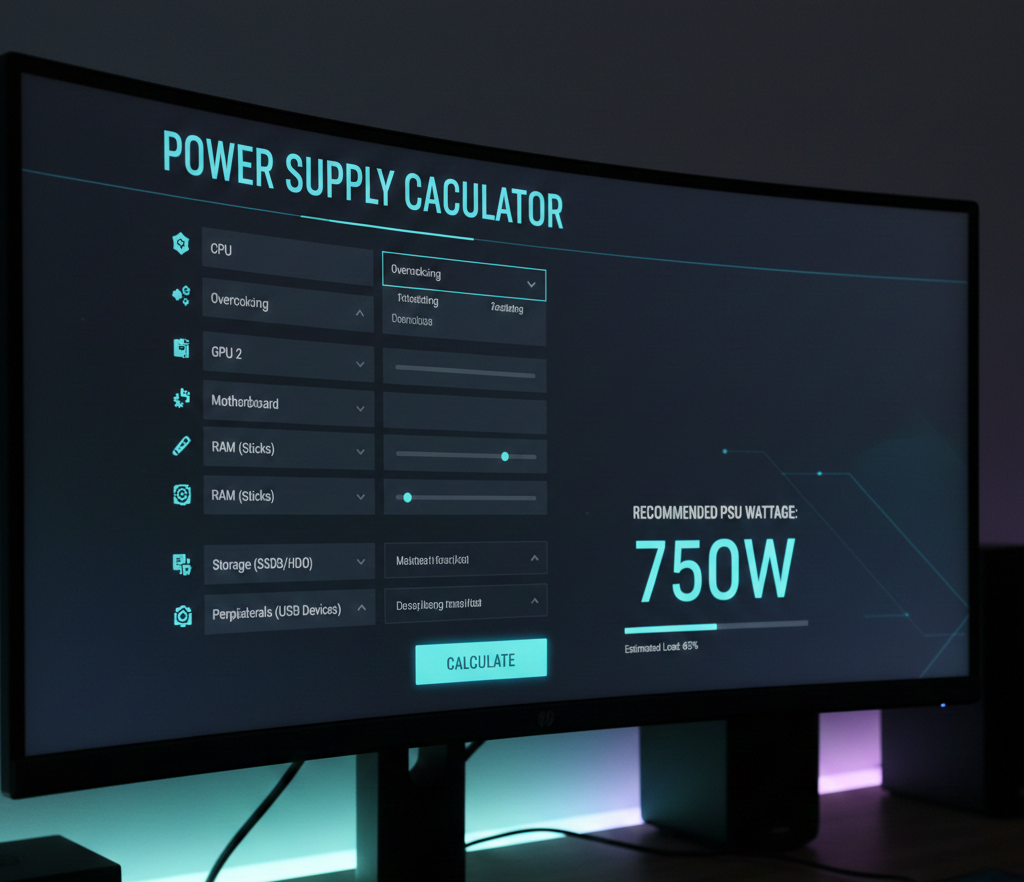
When you’re building or upgrading a PC, one question always pops up: How much power do I actually need? That’s where a power supply calculator becomes your best friend. Whether you’re assembling a gaming rig, a workstation, or a budget build, using a PC power supply calculator helps prevent crashes, overheating, and wasted money on an oversized unit.
In this guide, we’ll break down how these tools work, why they matter, and how to use them like a pro—without drowning in technical jargon.
What Is a Power Supply Calculator? (And Why You Need One)
A computer power supply calculator is an online tool that estimates how many watts your PC components will draw. Instead of guessing, the calculator gives you a realistic wattage requirement based on:
-
CPU model
-
GPU model
-
RAM amount
-
Motherboard type
-
Storage devices
-
Cooling setup (air or liquid)
-
Overclocking plans
-
Peripheral power usage
This ensures you buy a PSU that’s neither too weak nor unnecessarily large.
Why a PC Power Supply Calculator Matters
Choosing the right PSU isn’t glamorous, but it’s one of the most important decisions in PC building. Here’s why relying on a power supply calculator PC tool matters:
1. Accuracy Saves You Money
Buying a 1000W PSU for a 500W build wastes cash and efficiency. Calculators help you find the sweet spot.
2. Prevents System Instability
Not enough wattage equals random shutdowns, failed boots, and GPU underperformance.
3. Protects Your Hardware
A proper wattage buffer keeps voltage stable and components safe.
4. Helps with Future Upgrades
You’ll know if your PSU can handle that next graphics card or CPU upgrade.
How Power Supply Calculators Work (Simple Breakdown)
Most calculators—like the popular Newegg power supply calculator, PCPartPicker, or Cooler Master’s calculator—follow the same logic.
Step-by-Step: What Happens Behind the Scenes
-
You enter your components.
-
The tool pulls manufacturer wattage data.
-
It applies load estimates for gaming or workstation usage.
-
It adds overhead for PSU efficiency, spikes, and aging.
-
It gives you a recommended wattage and PSU tier.
Some calculators even adjust recommendations based on GPU brand, cooling system, or overclocking profiles.
How to Use a Power Supply Calculator (Beginner-Friendly)
Using a pc power supply calculator is extremely simple. Here’s a quick guide:
1. Gather Your PC Specs
You’ll need your CPU, GPU, RAM, drives, and case fans.
If you don’t know your specs, tools like Speccy or Task Manager can help.
2. Choose a Reputable Calculator
Suggested external links (you can insert later):
-
Newegg Power Supply Calculator
-
Cooler Master Power Calculator
-
PCPartPicker PSU Estimator
3. Enter Your Components
Fill out each component category. Be as accurate as possible.
4. Decide on Overclocking
If you plan to overclock your CPU or GPU, select it—this affects power draw significantly.
5. Add Headroom
A good rule of thumb is 20–30% extra wattage above the calculated number.
6. View Results and Pick a PSU
Most calculators recommend specific wattages (e.g., 650W, 750W).
Use these results when browsing internal links such as:
-
“Best PSUs for Gaming PCs”
-
“How to Choose an 80 Plus Certified Power Supply”
How Much Wattage Does the Average PC Need?
Here’s a rough guide if you’re estimating manually:
| PC Type | Typical Wattage |
| Office / Browsing | 300–450W |
| Mid-Range Gaming | 550–650W |
| High-End Gaming | 750–850W |
| Enthusiast / Workstation | 1000W+ |
A power supply calculator PC tool gives a far more accurate number tailored to your parts.
LSI Keywords Used Naturally
-
PSU wattage estimate
-
power requirement calculator
-
how many watts my PC needs
-
PSU sizing
-
gaming power supply needs
How Reliable Are Power Supply Calculators?
Very reliable—when you use reputable ones. They use real component data and manufacturer wattage specs. But calculators still assume “typical load,” which is why adding extra headroom is essential.
Think of them as a smart estimate, not an absolute scientific measurement.
Newegg Power Supply Calculator: Is It Worth Using?
The Newegg power supply calculator is one of the most popular tools globally because:
-
It covers thousands of components
-
It’s easy for beginners
-
It accounts for overclocking
-
It adjusts for PSU efficiency ratings
It’s a great starting point, especially if you’re shopping on Newegg anyway.
Common Mistakes People Make When Using a PSU Calculator
Avoid these pitfalls for accurate results:
1. Not Adding Future Upgrades
Always plan at least 12–24 months ahead.
2. Ignoring GPU Power Spikes
Modern GPUs (especially NVIDIA RTX models) can spike 2× their listed wattage.
3. Forgetting Fans, RGB, and AIO Coolers
Yes—RGB does cost watts!
4. Choosing the Minimum Wattage
Always pick the next PSU tier above the calculated result.
FAQs: Power Supply Calculator
1. What is the most accurate power supply calculators?
Cooler Master, Newegg, and PCPartPicker are widely considered the best.
2. How many watts do I need for gaming?
Most gaming PCs need 550–850W, depending on the GPU and CPU.
3. Should I oversize my PSU?
Yes. Aim for 20–30% headroom for stability and future upgrades.
4. Does overclocking change the PSU requirements?
Absolutely. Overclocking can add 50–150W depending on your components.
5. Can a PSU calculator help me choose the right PSU brand?
Some tools recommend wattage only, but many builders pair the results with reviews and tier lists.
6. Is the Newegg power supply calculators reliable?
Yes. It’s widely used and updated with modern components.
Conclusion: Choosing the Right PSU Starts With a Good Calculator
A reliable power supply calculator takes the guesswork out of building a PC. It helps you choose a PSU that’s safe, efficient, and ready for upgrades. Whether you use the Newegg power supply calculator or any other trusted tool, you’ll get a clear wattage estimate that makes shopping much easier.